Marvel Rivals has hit the ground running with an impressive lineup of over thirty playable characters spread across three distinct roles. Each character boasts an extensive gallery of skins that are regularly refreshed with new content as each Competitive Season rolls out. Whether you're a fan of superheroes or villains, there's something for everyone to customize their favorite characters.
In Marvel Rivals, acquiring character skins is a multifaceted experience. Players can unlock these skins through various means such as progressing through free or premium Battle Pass tiers, tackling challenges or participating in limited-time events and missions, making purchases in the in-game shop using digital or real currencies, or even claiming them via Twitch Drops. As we enter Season 1 - Eternal Night Falls, a new set of Twitch drops has been introduced, spotlighting Hela with a unique Galacta-themed cosmetic available for free. Below, you'll find all the details on how to secure these exciting freebies.
How to Get the Will of Galacta Hela Skin For Free in Marvel Rivals
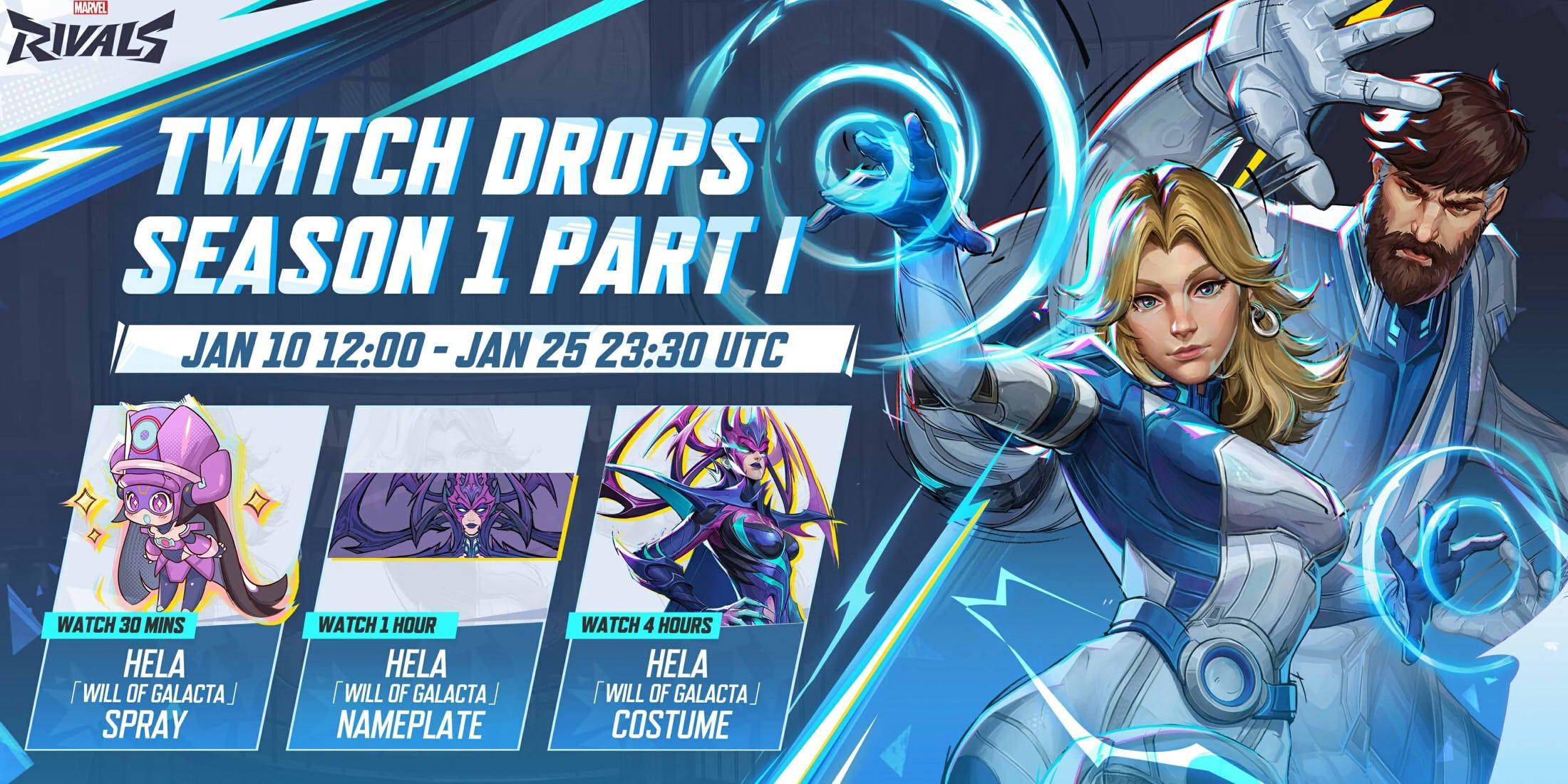
The Will of Galacta skin for Hela is a highlight of the Season 1 - Eternal Night Falls Twitch drops campaign, available from January 10 to January 25 at 11:30 PM UTC. To claim these drops, you must link your Marvel Rivals account to your Twitch account. Then, tune into Marvel Rivals gameplay streams that have drops enabled, often marked with \[DROPS\] in the stream title, and watch for the required duration.
Once you've earned the drops, navigate to the drops section on your Twitch profile and click the claim button for each item. After claiming, you'll receive in-game mail in Marvel Rivals, where you can claim the items once more to add them to your collection.
Marvel Rivals Season 1 Twitch Drops
- Watch for 30 minutes: Will of Galacta spray
- Watch for 1 hour: Will of Galacta Hela Nameplate
- Watch for 4 hours: Will of Galacta Hela Skin
How to Link Twitch to Marvel Rivals Account
- Visit the Marvel Rivals website.
- Click the log in button located in the top right corner.
- Sign in using your platform of choice, such as Steam or PlayStation.
- After logging in, click on your profile and then select Connections.
- Choose Twitch and follow the on-screen instructions to complete the linking process.