Mods can significantly enhance your gaming experience in *Ready or Not*, offering new content and features that breathe fresh life into the game. However, they can also lead to stability issues and restrict multiplayer capabilities with friends who don't have the same mods installed. If you're facing these problems or simply wish to start fresh, here's a comprehensive guide on how to remove all mods from *Ready or Not*.
How to Remove Mods in Ready or Not
No matter how you've installed your mods—be it manually, through the Nexus mod manager, or via mod.io—deleting them is straightforward. Follow these steps to ensure a clean removal:
- Launch *Ready or Not*. Go to the Mod Menu in-game and unsubscribe from all mods. This step ensures that the mods won't automatically redownload after deletion.
- Close *Ready or Not*.
- Open Steam, right-click on *Ready or Not* in your Library, and select Properties. Navigate to Installed Files, and click on Browse to access the game’s folder.
- Find the path *Ready or Not* > Content > Paks. Delete everything inside the Paks folder, then delete the folder itself.
- Press Windows+R, type in %localappdata%, and press Enter. Locate the *Ready or Not* folder, navigate to *Ready or Not* > Saved > Paks, and delete this Paks folder as well.
- You've now removed all mods from the game. To ensure no bugs remain, right-click on *Ready or Not* in Steam, go to Properties > Installed Files, and select Verify Integrity of Game Files.
If you're not planning on using mods again, consider giving your game a fresh reinstall. While not strictly necessary, it can help ensure a clean slate.
Related: How To Fix ‘Serialization Error Action Needed’ in Ready or Not
Why Should You Delete Mods in Ready or Not?
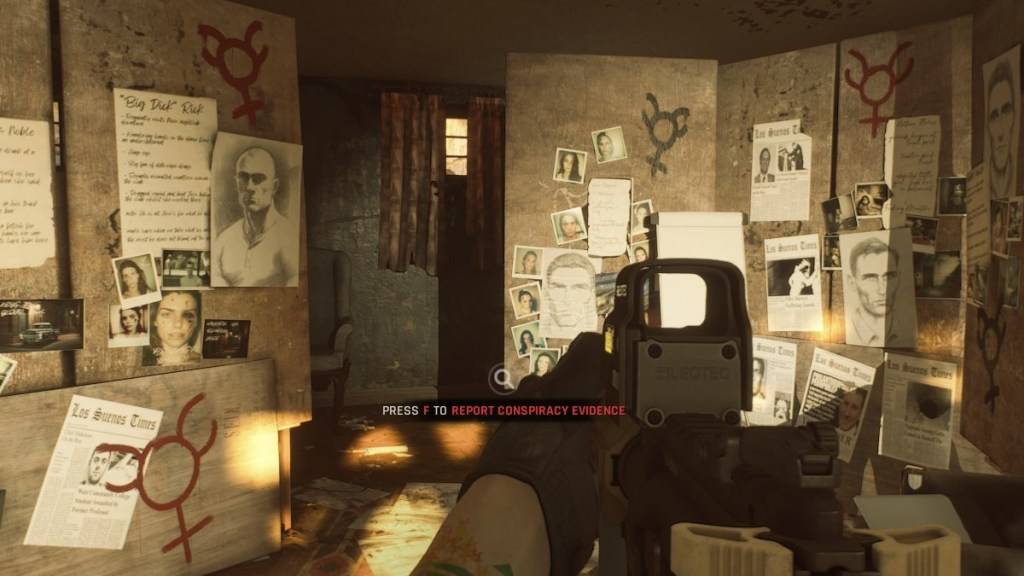
Additionally, mods can hinder multiplayer experiences. If you want to play with friends who don't have mods, you'll need to remove them to ensure compatibility. This step is crucial for enjoying the game with a broader community.
*Ready or Not is available now for PC.*