The ROG Ally made waves in 2023 as a robust competitor to the Steam Deck, primarily due to its Windows operating system, which grants access to a broader range of games. The subsequent release of the ROG Ally X in the same year not only enhanced its internal specifications but also improved its ergonomics and cooling system, making it even more user-friendly.
One of the ROG Ally's standout features is its portability, yet it's also designed to enhance your gaming experience on larger screens. Both the original and the ROG Ally X can be easily connected to external displays, allowing you to enjoy your games on a TV or gaming monitor. Below, we provide a comprehensive guide on how to connect your ROG Ally to a TV or monitor, complete with step-by-step instructions and our top recommendations.
How to Connect With an Adapter
Connecting your ROG Ally to a TV or monitor can be accomplished in several ways, with using an adapter being one of the most straightforward and space-efficient options. You can choose from a variety of adapters, including small dongles, direct cables, or the official ROG Gaming Charger Dock.
What You'll Need
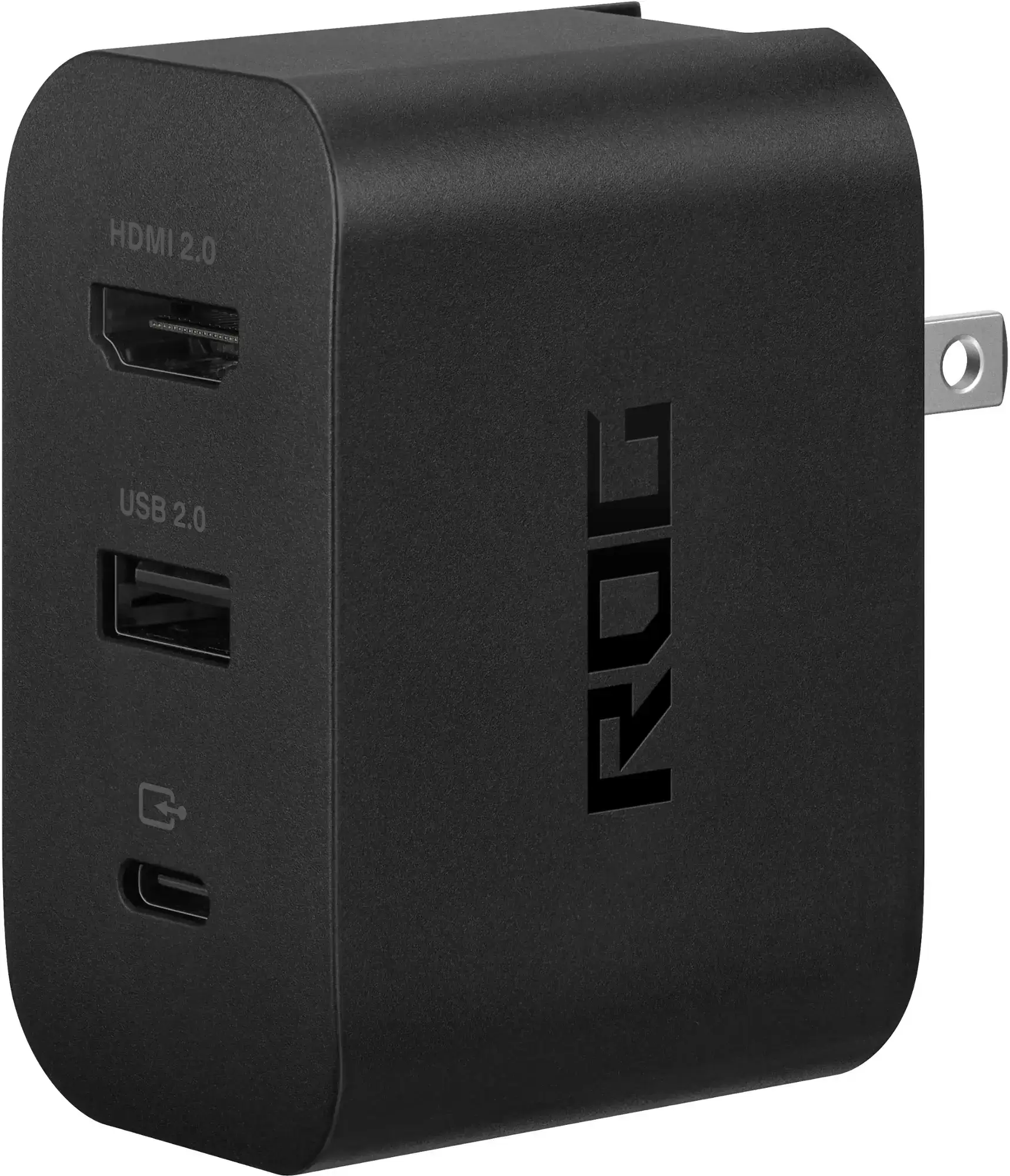
ASUS ROG 65W Charger Dock
The ASUS ROG 65W Charger Dock is an excellent choice for connecting your ROG Ally to a TV. It supports HDMI 2.0 and comes equipped with USB Type-A and USB Type-C ports. This dock not only facilitates a connection to your TV but also charges your device simultaneously. All you need is a USB-C cable and an HDMI cable to get started. The dock also features a USB-A port, allowing you to connect peripherals like a mouse or keyboard.
Alternatively, you can use a third-party USB-C to HDMI adapter. Simply plug the adapter into the ROG Ally's USB-C port, then connect an HDMI cable from the adapter to your TV or monitor. For a more streamlined setup, consider a USB-C to HDMI cable that directly connects your ROG Ally to your display.
Some USB-C to HDMI adapters come with a passthrough USB-C port for charging. If your adapter has this feature, you'll need an additional USB-C cable and your power adapter to keep the ROG Ally charged while playing.
How to Connect: Step-by-Step Instructions
- Plug a USB-C to HDMI adapter (or cable) into the ROG Ally's USB-C port on the top of the device. If using the ROG Gaming Charger Dock, connect one end of a USB-C cable to the ROG Ally and the other to the dock's USB-C charging port.
- Connect an HDMI cable to the adapter (or dock) and plug the other end into an available HDMI port on your TV or monitor. If using a direct USB-C to HDMI cable, simply connect the HDMI end to your display.
- (Optional) If your adapter has a passthrough USB-C port, connect your ROG Ally's power adapter to this port to charge the device while playing.
- Power on the ROG Ally; it should automatically detect and output the video signal.
- Switch your TV or monitor to the correct HDMI input to view your ROG Ally's display.
How to Connect With a Docking Station
For a setup reminiscent of the Nintendo Switch, consider using a docking station. While the ROG Ally doesn't have an official docking station beyond the ROG Gaming Charger Dock, numerous third-party options are available. These docks not only connect your ROG Ally to a TV or monitor but also charge the device and often include additional ports for peripherals.
What You'll Need
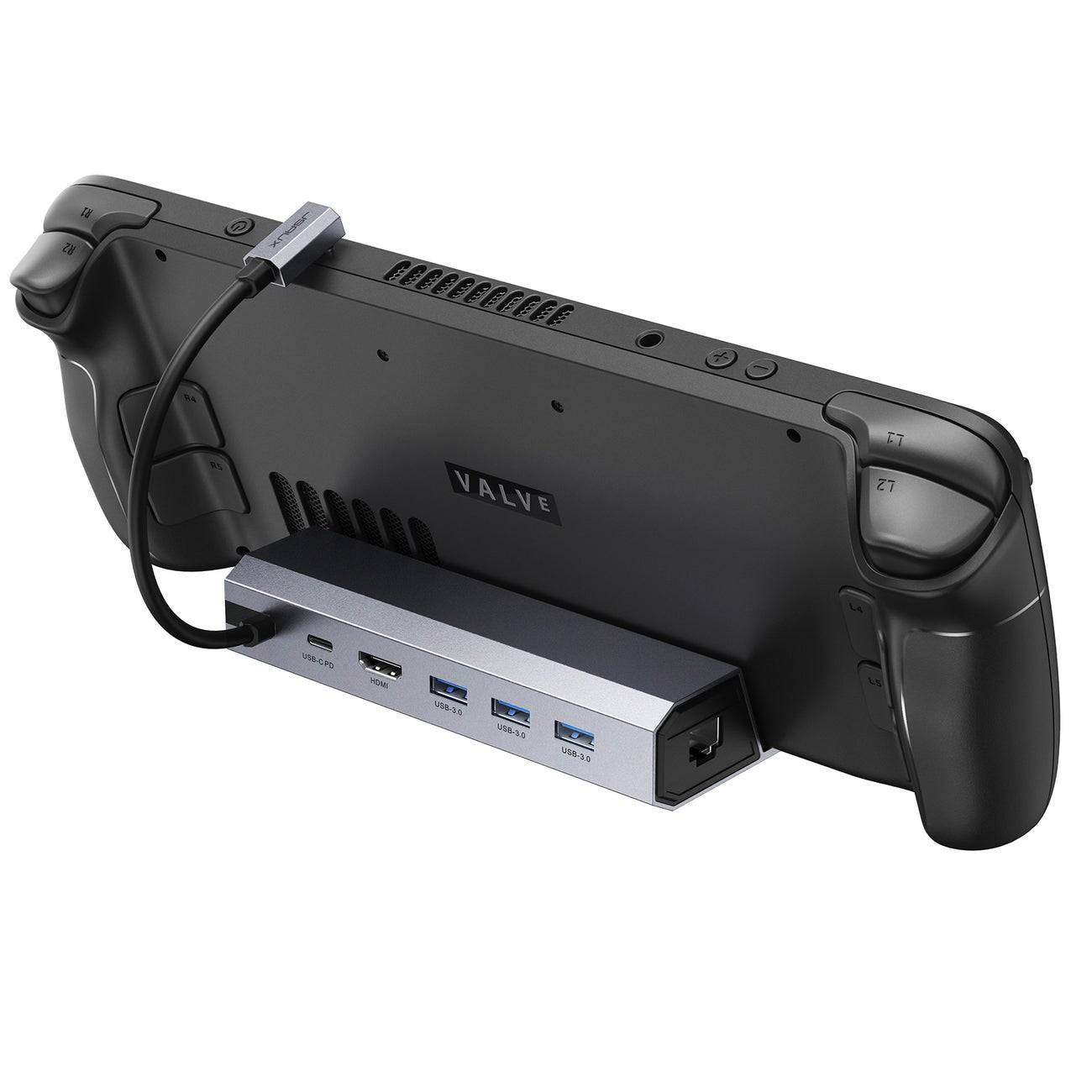
JSAUX Docking Station HB0603
The JSAUX Docking Station HB0603 is our top pick, offering 100 watts of power for fast charging and a variety of ports. This compact and lightweight dock also serves as a stand for your ROG Ally. Basic docks typically include an HDMI port and a USB-C passthrough charging port, while more advanced models may offer additional USB ports, Ethernet ports, SD card slots, and even a Display Port for connecting multiple displays. Many docks designed for the Steam Deck are also compatible with the ROG Ally, making them a versatile choice for travelers.
How to Connect: Step-by-Step Instructions
- Place your ROG Ally into the dock.
- Connect the USB-C power cord to the ROG Ally's USB-C port on the top of the device.
- Connect your ROG Ally's power adapter to the USB-C charging port on the dock.
- Connect an HDMI cable to the HDMI port on the dock and the other end to an available HDMI port on your TV or monitor.
- Power on the ROG Ally; it should automatically detect and output the video signal.
- Switch your TV or monitor to the correct HDMI input to view your ROG Ally's display.
You'll Also Need a Controller
While you can use a mouse and keyboard with your ROG Ally, a wireless controller often provides a more comfortable gaming experience on larger screens. The ROG Ally supports any Bluetooth-enabled gaming controller. Here are our top recommendations for controllers that work well with both the ROG Ally and the Steam Deck:
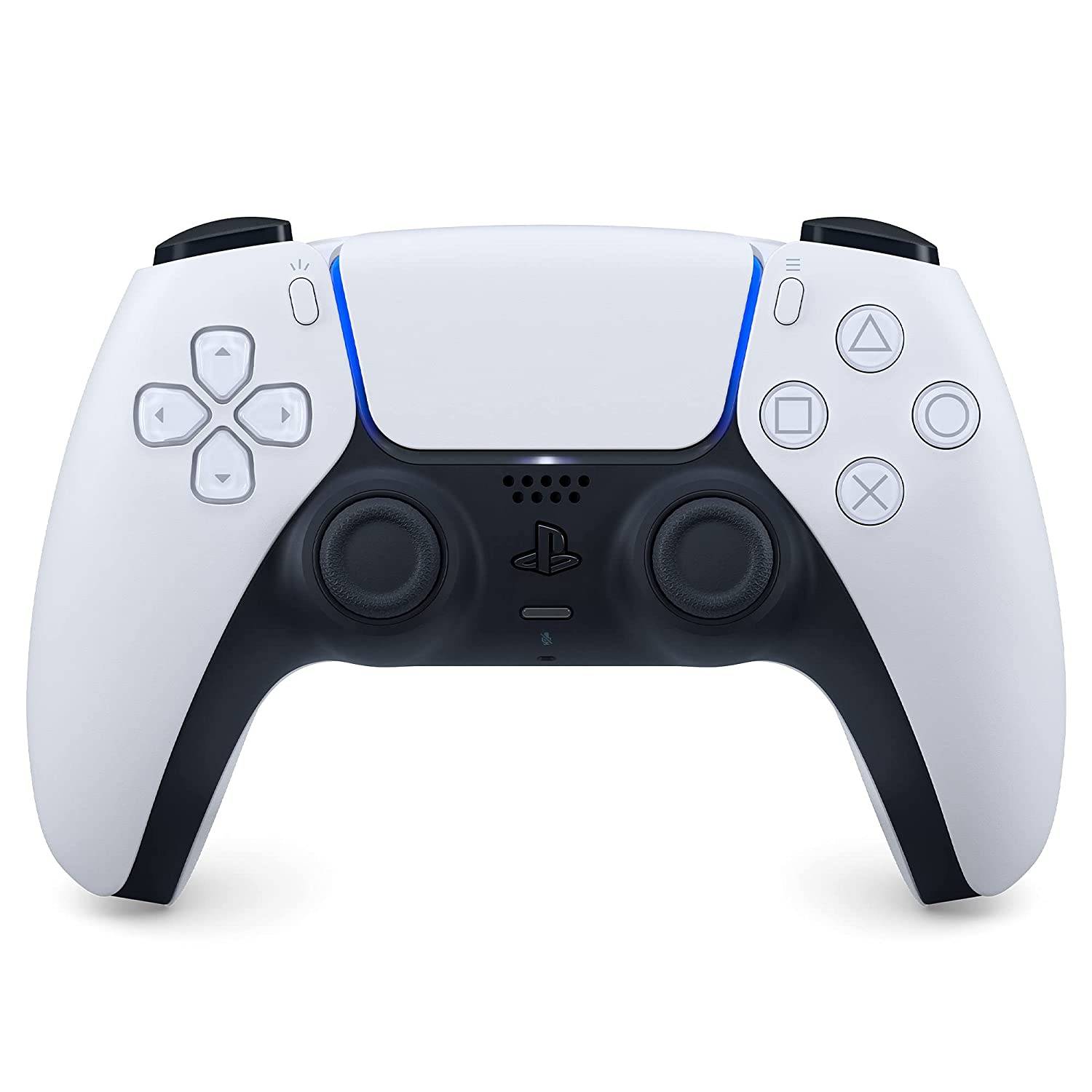
Sony DualSense
The Sony DualSense is our top pick, offering a high-quality gaming experience. It's available at Amazon, Best Buy, and Target.
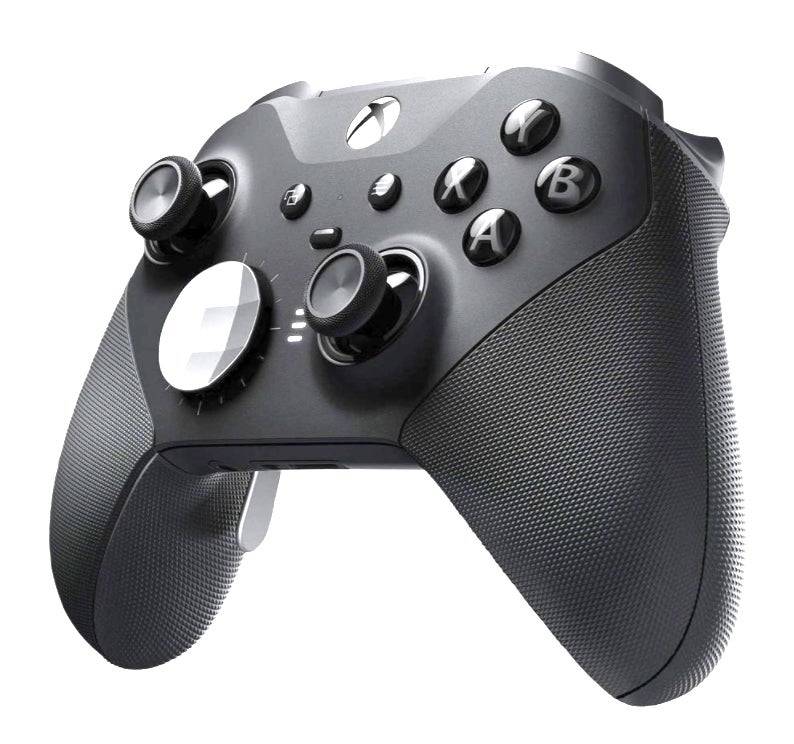
Xbox Elite Series 2 Controller
The Xbox Elite Series 2 Controller is another excellent choice, available at Amazon and Best Buy.
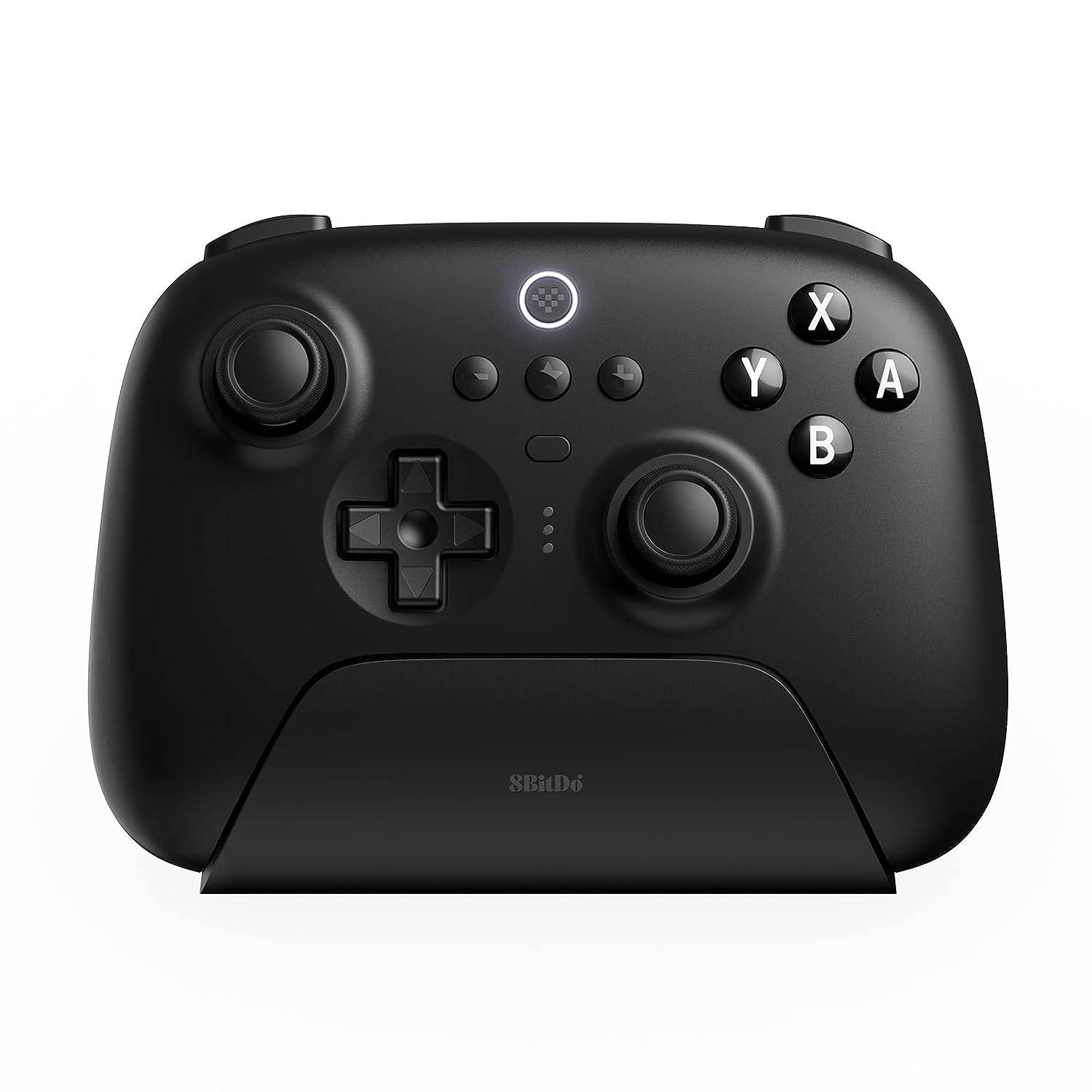
8BitDo Ultimate Controller
The 8BitDo Ultimate Controller is a versatile option, available at Amazon.
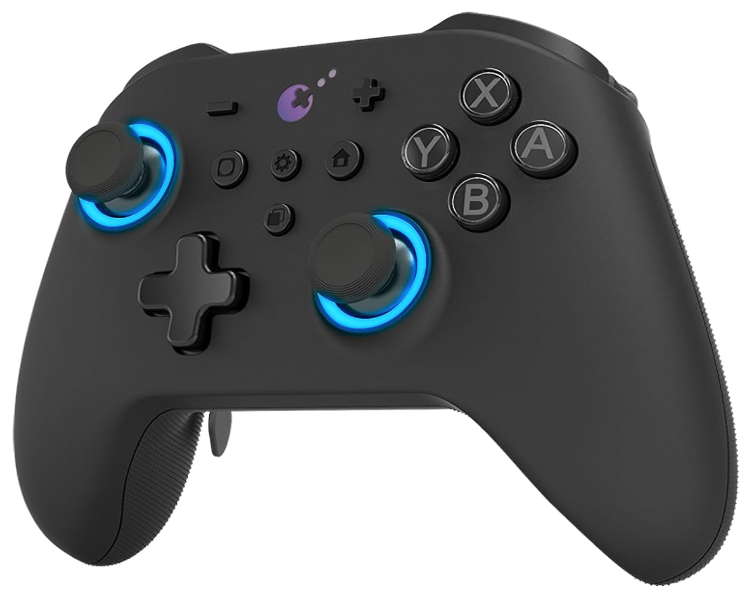
GuliKit KingKong 3 Max Controller
The GuliKit KingKong 3 Max Controller is another great choice, available at Amazon.
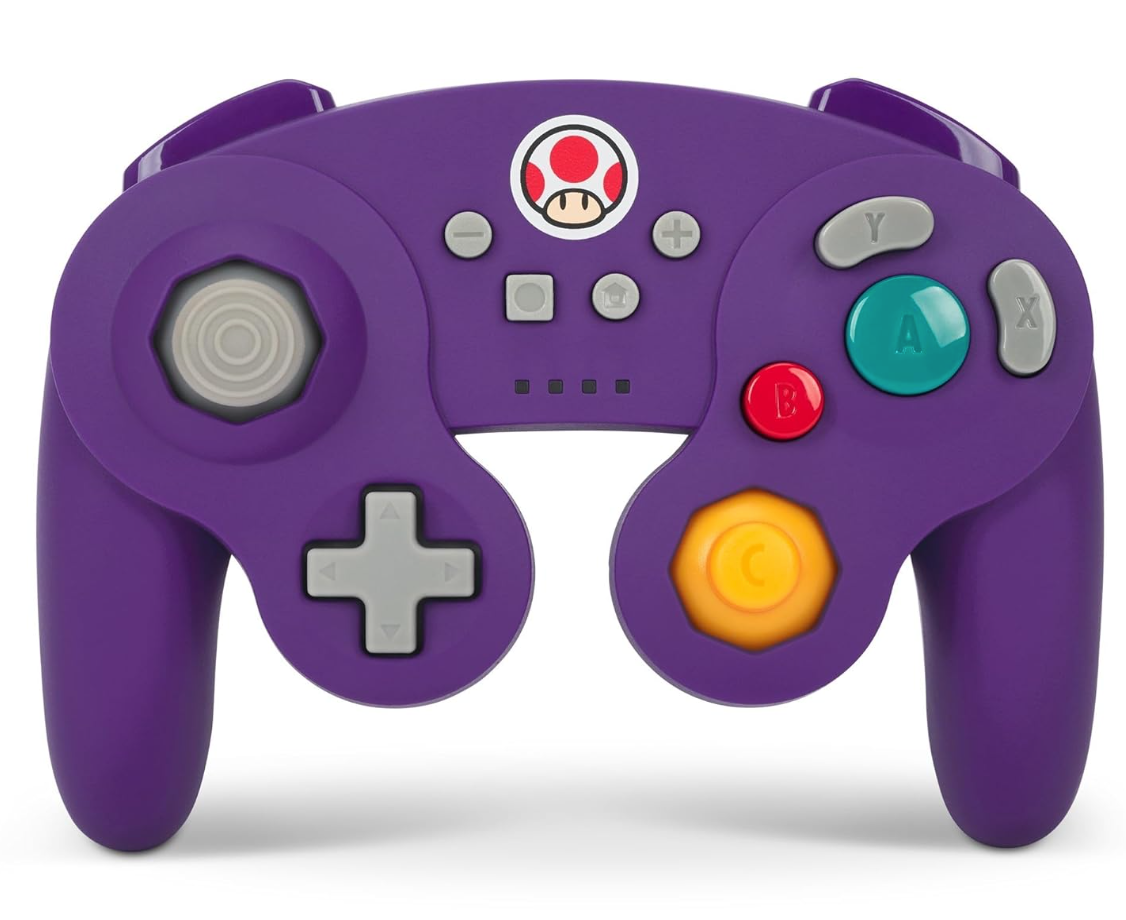
PowerA Wireless GameCube Style Controller
For a nostalgic feel, the PowerA Wireless GameCube Style Controller is available at Amazon.
These controllers include first-party options like the PS5's DualSense, the Xbox Wireless Controller, or the Nintendo Switch Pro Controller, as well as a variety of third-party options. Some controllers use a 2.4GHz wireless connection with a USB adapter, which can offer lower latency and better range than standard Bluetooth controllers. For a simpler setup, you can also opt for a wired USB controller if you're close enough to your ROG Ally or docking station.